

There are hundreds of AI tools being launched every week. Most of them are noise.
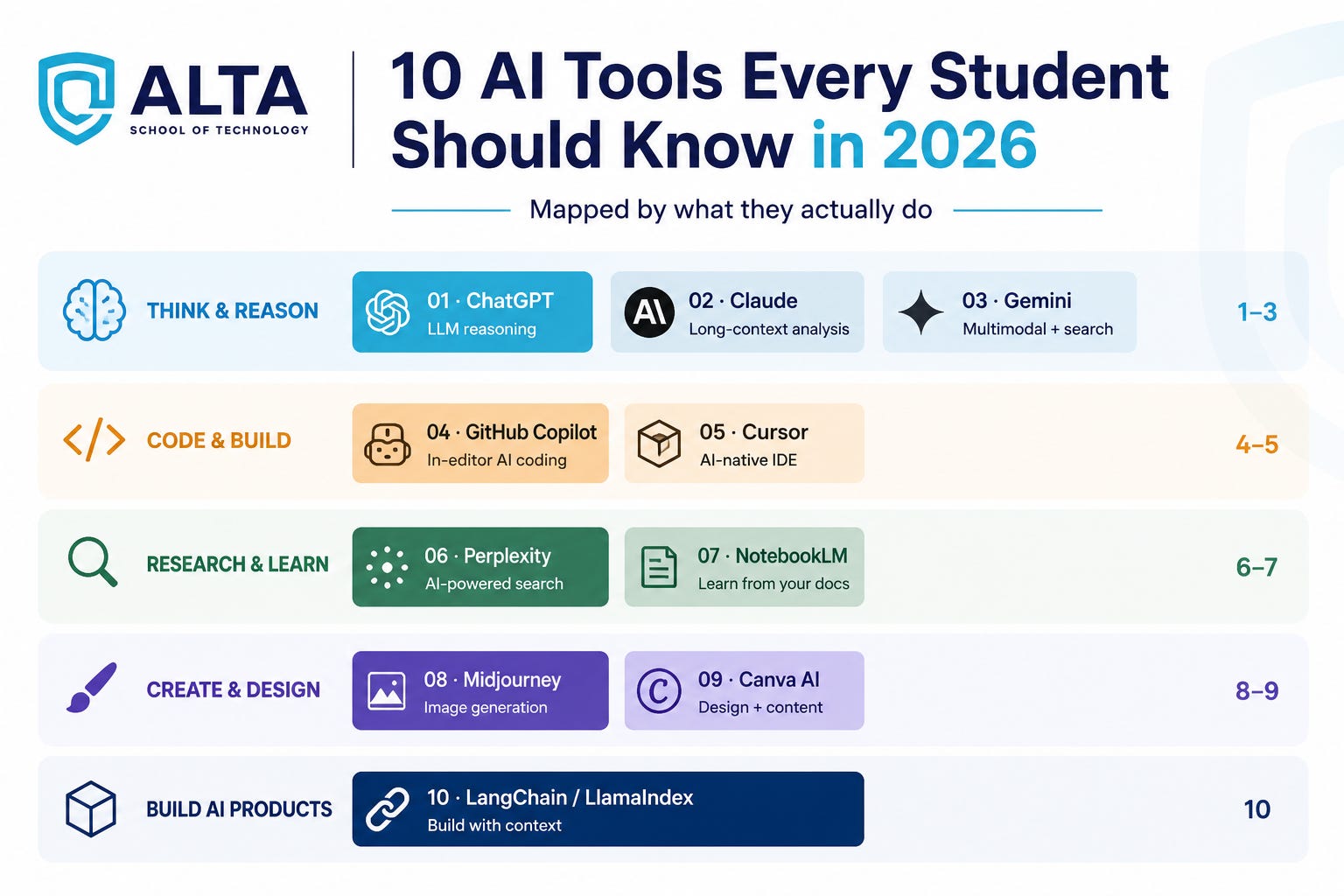
This list cuts through. These are the 10 tools that will actually change how you learn, how you build, and how you show up to your first job - organised by what they do, not by how much press coverage they’ve received.
One rule before we start: the students who will stand out in 2026 are not the ones who have heard of all these tools. They are the ones who have built something with them.
Category 1 - Think & Reason
Your thinking partners. Use these when you need to understand something, analyse something, or generate ideas faster than you could alone.
1. ChatGPT - your always-on thinking partner
What it does
ChatGPT is a conversational AI that can explain concepts, write and debug code, summarise documents, draft content, and reason through complex problems in natural language. It is the entry point for most people into working with AI - and for good reason.
Why students should use it
Stop using it to get answers. Start using it to think out loud.
The students who get the most from ChatGPT are not the ones who ask “what is dynamic programming?” They are the ones who ask “I think I understand dynamic programming but when I try to apply it I don’t know how to identify the subproblem - can you walk me through the reasoning on this specific problem I’m stuck on?”
That specificity is everything. The model is only as useful as the context you give it.
Concrete uses that actually matter:
Debug code by pasting the error and the relevant code snippet - ask it to explain what went wrong, not just give you the fixed version
Understand complex topics by asking for multiple levels of explanation - “explain this to me like I’m 16, then like I’m a second-year CS student”
Generate multiple approaches to a problem and ask it to explain the tradeoffs - not to tell you which one to pick, but to help you understand the decision
Draft something, then ask it to “find the logical gaps in this argument” - use it as a critic, not a ghostwriter
Real-life analogy
Think of ChatGPT as a senior colleague who is always available, never impatient, and has read everything. You would not copy their answer verbatim - but you would absolutely use them as a sounding board at 2am when your code breaks and everyone else is asleep.
The one habit that changes everything
Never ask yes/no questions. Ask it to reason out loud. “Explain step by step why this sorting algorithm is O(n log n)” will always give you more than “Is quicksort fast?” The depth of your output is proportional to the depth of your prompt.
In a nutshell: Your always-on thinking partner. Best for explaining, debugging, brainstorming and reasoning. The more specific your prompt, the more useful the output. Never copy-paste answers - use it to understand, then write your own.
2. Claude - your deep-reader and careful thinker
What it does
Claude is an AI assistant built by Anthropic with a strong emphasis on nuanced reasoning, careful analysis, and handling very long contexts. Where most models start to lose coherence beyond a certain length, Claude reads and reasons across entire research papers, codebases, or books in one session.
Why students should use it
The feature that matters most: context length and quality of reasoning on long documents.
Upload a 60-page research paper and ask Claude specific questions - not “summarise this” but “what are the methodological limitations the authors acknowledge, and what limitations do they not acknowledge?” That level of engagement with a document is only possible with a model that genuinely reads all of it.
The other thing Claude does unusually well is giving feedback that is honest rather than encouraging. Ask it to critique your essay or your code design and it will tell you what is actually wrong, not what sounds supportive. That directness is rare and valuable.
Concrete uses:
Upload your entire codebase and ask “where is the likely source of this bug?” - it holds far more context than most tools
Paste a research paper and ask for the strongest counterargument to its central claim
Get genuine critique on your writing - ask it to identify where your argument weakens, not where it is good
Use it for anything that requires sustained attention to a long, complex piece of material
Real-life analogy
If ChatGPT is the colleague who is great at quick answers, Claude is the colleague who reads the whole document before commenting. When you need someone to truly engage with a long, complex piece of work rather than just skim it, Claude is the one to call.
In a nutshell: Your deep-reader and careful thinker. Use Claude when the task involves long documents, nuanced reasoning, or when you want feedback that goes beyond surface-level. Exceptional for research, analysis and critique.
3. Gemini - your multimodal, always-current AI
What it does
Gemini is Google’s AI model that can process text, images, audio and video - and crucially, it has native integration with Google Search, meaning it can access current information rather than being limited to a training cutoff.
Why students should use it
Two things make Gemini meaningfully different from the other thinking tools.
First: it can look things up right now. When you ask about a library released last month, a paper published last week, or a news event from yesterday, Gemini searches the web in real time and incorporates current information into its answer. The other models, by default, cannot do this.
Second: it processes images natively. Take a photo of a whiteboard diagram your professor drew, paste it into Gemini, and ask “explain this concept and identify anything that looks unclear.” Take a photo of a printed circuit diagram and ask what each component does. Take a screenshot of an error message in a UI and ask what likely caused it. That multimodal capability opens up interactions the other tools cannot match.
Concrete uses:
Research any topic where currency matters - recent papers, library updates, events, current pricing
Analyse diagrams, screenshots, photos and charts directly without describing them in text
Use Gemini Advanced inside Google Docs and Sheets for AI-powered work without switching applications
Compare current documentation across two frameworks to decide which one to use for a project
Real-life analogy
If the other models are like very knowledgeable colleagues who have been offline for a few months, Gemini is the colleague who has their phone in hand and can look things up in real time. When currency of information matters, this is the one to use.
In a nutshell: Your multimodal, always-current AI. Use Gemini when you need real-time information, when the task involves images or other media, or when you’re working inside Google Workspace. Its live web access is a genuine differentiator.
Category 2 - Code & Build
Your engineering accelerators. Tools that make you write better code faster - and help you understand code you did not write.
4. GitHub Copilot - your in-editor coding companion (free for students)
What it does
GitHub Copilot sits inside your code editor - VS Code, JetBrains, Vim - and suggests code completions, entire functions, and explanations as you type. It is trained on billions of lines of public code and is free for verified students through GitHub Education.
Why students should use it
The most important thing to understand about Copilot: it is not an answer machine. It is an acceleration tool.
The workflow that makes it valuable: write a comment describing what a function should do. Copilot writes the function. Then you read it - carefully - and understand why it was written that way. If you do not understand a suggestion, that is not a reason to skip it. It is a reason to ask ChatGPT or Claude to explain it. The suggestion becomes a learning opportunity.
Concrete uses:
Write boilerplate code (API calls, database connections, test setups, config files) at the speed of thought so you can focus on actual logic
Understand unfamiliar codebases - select a block of code and ask Copilot to explain it line by line
Generate unit tests by selecting a function and asking for test cases - it knows what edge cases typically matter
Use it to explore libraries faster - instead of reading docs, write a comment “connect to PostgreSQL using psycopg2 with connection pooling” and see what it produces, then read the code
Real-life analogy
GitHub Copilot is like having a very fast typist sitting next to you who has memorised every Stack Overflow answer ever written. You think. You direct. It types. The thinking is still yours - but you spend far less time on implementation details and more on architecture and logic.
The critical warning
Copilot suggestions are not always correct. They can be subtly wrong, outdated, or insecure - especially for security-sensitive code. The skill is not accepting suggestions. It is evaluating them. Use Copilot to move faster, not to think less.
In a nutshell: Your in-editor coding accelerator - free for students. It writes boilerplate, completes functions, and explains code. The discipline: always read, understand, and evaluate what it suggests. Speed without understanding is debt, not skill.
5. Cursor - the AI-native IDE that understands your whole project
What it does
Cursor is a code editor built from the ground up around AI - not AI bolted onto an existing editor as an afterthought. It understands your entire codebase, can make multi-file edits in one instruction, and has a chat interface where you reference specific files, functions and error messages directly.
Why students should use it
The fundamental difference from Copilot is scope. Copilot works at the level of the line or function. Cursor works at the level of the project.
“Add error handling to every API call in this codebase” - Cursor finds all the relevant files, identifies all the API calls, and makes the changes consistently across all of them. That kind of instruction is impossible to give Copilot because Copilot does not have visibility into your whole project.
This is not just faster. It is a different way of working with code. You start thinking in goals rather than implementations. “Make this module work asynchronously.” “Refactor this to follow the repository pattern.” “Add logging to every database query.” The jump in what you can delegate is significant.
Concrete uses:
Give it a GitHub issue description and say “fix this” - it reads the relevant code, identifies what needs to change, and implements the fix
Ask “why is my app slow?” - it analyses your code and identifies likely bottlenecks with explanations
Refactor an entire module from one pattern to another without touching every file manually
Write tests for any function by selecting it - it understands the function’s context and generates meaningful tests
Real-life analogy
If Copilot is a typist who works sentence by sentence, Cursor is a junior engineer who understands the whole project. You can give it a goal - “refactor this module to use async/await” - and it will figure out what to change across the entire codebase. The scope of what you can delegate is fundamentally different.
In a nutshell: The AI-native IDE that understands your whole project. Use Cursor when you want to go beyond line-by-line completion to project-level changes, multi-file refactors, and goal-oriented code tasks. The step up from Copilot is significant.
Category 3 - Research & Learn
Your knowledge accelerators. Tools that compress the time between “I need to understand X” and actually understanding it.
6. Perplexity AI - AI search with citations
What it does
Perplexity is an AI search engine that answers your question directly - synthesising information from across the web in real time - with cited sources so you can verify every claim and dig deeper on what matters.
It replaces the “search → click → read → back → search again” loop with a direct, sourced answer that you can build on with follow-up questions in the same conversation.
Why students should use it
The feature that sounds small but changes everything: citations.
When Perplexity answers your question, it tells you exactly where every claim came from. That means you can immediately assess the quality of the source, decide whether to trust it, and go deeper on the ones that matter. You are not just getting answers - you are getting a navigable research trail.
Concrete uses:
Research any technical topic quickly with sourced answers - you always know what to verify
Ask follow-up questions in the same session without losing context - “you mentioned X, can you go deeper on the second point about Y?”
Find recent developments in any field where your textbooks are already outdated
Use “Focus” mode to search specifically within academic papers, YouTube, Reddit or news - depending on what kind of source you actually need
Real-life analogy
Google gives you a list of doors. Perplexity opens the right door and reads you the relevant paragraph. For research, the time saved by not having to open 10 tabs and scan each one is enormous - especially with citations so you always know which door you walked through.
In a nutshell: AI search with citations - the researcher’s best friend. Use Perplexity when you need real-time, sourced answers rather than a list of links to manually read. The citation discipline is critical - it stops you from believing things without knowing why.
7. NotebookLM - AI that learns from your documents
What it does
NotebookLM lets you upload your own documents - lecture notes, research papers, textbooks, PDFs - and then ask questions, generate summaries, create study guides, and get explanations, all grounded entirely in your source material. It does not pull from outside knowledge. It only knows what you gave it.
Why students should use it
That constraint - it only knows your material - is the feature, not the limitation.
General AI models can hallucinate information that sounds plausible but comes from nowhere. NotebookLM cannot do that because it has nowhere to hallucinate from. Every answer it gives you is traceable back to a specific passage in a document you uploaded. That reliability changes how you can use it.
Concrete uses:
Upload all your lecture notes for a semester and ask “what are the 10 most likely exam topics based on what was emphasised most?”
Upload a research paper and ask “explain the methodology as if I haven’t read the paper” - then verify the explanation against the original
Generate a podcast-style audio overview of your notes and listen while commuting or exercising
Build a personalised study guide: “create 20 exam-style questions from these notes with model answers”
Upload a textbook chapter and ask it to identify the 5 concepts you least understand based on the questions you have been asking
Real-life analogy
NotebookLM is like having a study partner who has read all the same material you have - and only knows what you both read. Unlike a general AI that might drift to outside information, everything it tells you is grounded in the documents you uploaded. That fidelity is rare and valuable.
In a nutshell: Your AI study partner that only knows your material. Upload your notes, papers and textbooks. Ask questions. Get study guides. Everything it tells you is sourced from what you gave it - making it one of the safest AI tools to rely on for learning.
Category 4 - Create & Design
Your creative accelerators. You do not need to be a designer or artist to produce professional-quality visuals - you need the right tools and the right prompts.
8. Midjourney - professional AI image generation
What it does
Midjourney generates high-quality images from text prompts - illustrations, product mockups, UI concept visuals, presentation graphics, posters, and conceptual art. It consistently produces more aesthetically refined output than most comparable tools and is the current industry standard for AI image generation quality.
Why students should use it
The practical impact: you can produce visuals for project presentations, pitch decks, and portfolios that look genuinely professional - without design skills, without stock photo subscriptions, and without waiting for a designer.
But there is a secondary benefit that is less obvious. Learning to write Midjourney prompts well - describing exactly what you want, the style, the composition, the lighting, the mood - is direct practice in the same skill that makes you better at prompting LLMs. Precision in language, specificity of intent, understanding how the model interprets your words. The two skills compound each other.
Concrete uses:
Create custom visuals for project presentations that do not look like stock photos
Rapidly prototype visual concepts for UI/UX projects - describe the interface and generate reference images before touching any design tool
Generate consistent illustration styles for blog posts, documentation or LinkedIn content
Explore visual directions for a project quickly - generate 20 variations of a concept in the time it would take to sketch 2
Real-life analogy
Before AI image generation, if you wanted a custom illustration you hired a designer and waited days. Midjourney is like having a world-class illustrator who works in seconds and never gets tired of iterations. The quality of what you can produce for a project presentation changed fundamentally when this tool existed.
In a nutshell: Professional-grade AI images from text descriptions. Use for project visuals, presentation graphics, UI mockups, and portfolio content. The secondary skill it builds - describing precisely what you want - transfers directly to all LLM work.
9. Canva AI - design for everyone, now faster
What it does
Canva has integrated AI across its entire design platform - Magic Write for content generation, Magic Design for instant presentations from an outline, background removal, AI image generation, and AI-assisted video editing. It makes professional-looking output achievable with no prior design experience.
Why students should use it
The time calculation is straightforward. A presentation that takes 4 hours to build from scratch takes 20 minutes with Canva AI. A social media graphic that would require Photoshop knowledge takes 3 minutes. A one-page project summary that would need a designer takes 10 minutes.
The output is not always perfect. But it is always a strong starting point - and for most student use cases, the starting point is good enough to submit or publish directly.
Concrete uses:
Create a professional presentation from a text outline using Magic Design - type your points, it builds the deck
Generate social media posts and graphics for your project’s LinkedIn presence without design skills
Produce polished project documentation, one-pagers and pitch decks that actually look designed
Build a personal portfolio page from an AI-generated template with your content dropped in
Real-life analogy
Canva AI is like having a graphic designer and copywriter in one tool that already knows what professional design looks like. You bring the idea and the content. It handles the layout, the typography, the visual hierarchy. The output looks designed - not “I made this in PowerPoint at 2am.”
In a nutshell: AI-powered design for everyone. Use Canva AI when you need professional-looking presentations, social content, infographics, or documents without a design background. The presentations-from-outline feature alone saves hours every week.
Category 5 - Build AI Products
The frameworks that move you from using AI tools to building them. This is where you stop being a consumer and start being a creator.
10. LangChain & LlamaIndex - build real AI applications
What they do
LangChain and LlamaIndex are Python frameworks that make it practical to build production-grade AI applications - RAG systems, AI agents, chatbots with memory, and multi-step AI pipelines - without having to build the plumbing yourself from scratch.
LangChain excels at building chains of LLM calls, agent workflows, and tool integrations. LlamaIndex excels at building retrieval systems - connecting LLMs to your own data through structured indexing and querying. In practice, many real projects use both.
Why students should use them
This is the tool that separates students who have used AI from students who have built with AI.
Every tool above this one makes you better at using AI. LangChain and LlamaIndex make you capable of building AI applications that other people use. That is a categorically different thing - and it is what separates a portfolio project from a demo.
What you can build with these frameworks, as a student, in days:
A RAG chatbot that answers questions about your college’s syllabus, a company’s documentation, or any set of PDFs - in under 100 lines of code
An AI agent that uses tools (web search, calculators, database queries) to accomplish multi-step tasks without human intervention at every step
A conversational AI that remembers context across sessions — not just within a conversation but across days and weeks
A pipeline that processes new documents automatically, indexes them, and makes them queryable through natural language
Real-life analogy
Building an LLM application without LangChain is like building a house starting from making your own bricks. LangChain is the standardised building materials - the bricks, the connectors, the plumbing fixtures - so you can focus on what the house looks like, not how to manufacture cement. It compresses weeks of infrastructure work into hours.
Where to start
If you are new to these frameworks, start with LlamaIndex and build a RAG application on a topic you care about. Load 10 PDFs, build an index, and make them queryable through a simple chat interface. The entire thing can be done in a weekend. When that works, you will understand RAG at a level no YouTube tutorial can give you - because you built it.
In a nutshell: The frameworks that turn AI ideas into AI products. If the first 9 tools make you better at using AI, LangChain and LlamaIndex make you capable of building it. This is where student projects become portfolio pieces that industry actually recognises.
How to use this list
Do not try to learn all 10 at once.
Week 1-2: Start with ChatGPT and Copilot. Use ChatGPT every single day for studying, writing and debugging. Use Copilot every time you write code. These two will change your daily habits more than anything else.
Month 1: Add Claude for research and long documents. Add Perplexity to replace Google for anything that needs sourced answers. Add NotebookLM for exam prep and paper analysis.
Month 2: Add Cursor when you have a project complex enough to benefit from project-level AI. Add Canva AI for anything you need to present or publish.
When you are ready to build: Add LangChain or LlamaIndex and build something. A RAG chatbot for your notes. An agent that automates something tedious in your workflow. Something real, deployed, and on GitHub.
That last step - building something real - is what converts tool knowledge into career evidence.
The market does not pay for knowing what these tools are. It pays for being able to build things with them.
Santosh Kumar Mishra is the Director of AI Innovation at Alta School of Technology - India’s first AI-first, project-based B.Tech in Computer Science. Every concept in this series is something Alta students build with - not just study.